Sign in

Short answer. You can create a UPS shipping label online at ups.com with Create a Shipment, either logged in or as a guest. Enter the sender and recipient addresses, the package weight and size, pick a service, pay, and print the label at home or at The UPS Store. You can also have The UPS Store prepare the shipment for you, or use a third party shipping tool that sells UPS labels.
Ways to create a UPS label
There are four common ways to get a UPS label.
- ups.com, Create a Shipment. Account needed: No, you can continue as a guest. What you do: Enter addresses, package, service, pay, print. Notes: Logging in lets you reprint labels from Shipping History.
- ups.com with a UPS account. Account needed: Yes. What you do: Same steps, saved addresses and history. Notes: Daily rates apply with a scheduled pickup or a UPS contract.
- The UPS Store. Account needed: No. What you do: Bring the item or the packed box. Notes: Staff can pack, ship and print the label for you.
- Third party shipping tools. Account needed: Depends on the tool. What you do: Compare, buy and print the label in the tool. Notes: Price and features depend on the tool.
The price type matters. UPS says retail rates apply if you ship from a UPS location, do not have a payment account or scheduled pickup, or ship infrequently with a payment card. Daily rates apply if you have a scheduled UPS pickup or a UPS contract that provides them. The two rate types also use different dimensional weight divisors: 139 for daily rates and 166 for retail rates, as of November 2026.
How to create a UPS label on ups.com, step by step
- Weigh and measure the packed box. UPS asks you to measure the longest side first (length), then the next longest (width), then the last side (height), and to round each measurement up to the next whole inch. Weigh the package and round any fraction of a pound up to the next full pound.
- Open Create a Shipment on ups.com. Log in to your UPS profile or continue as a guest.
- Fill in Ship From and Ship To. Enter your name and address, then the recipient's name and address. Include the apartment or suite number. If the address is a home, mark it as residential.
- Describe the package. Enter the weight and dimensions. If dimensional weight applies, ups.com calculates it and shows it as the billable weight on the review screen.
- Choose the service and options. Pick the delivery speed and any extra services you need.
- Pay and print. Choose a payment method, then print the label at home or at The UPS Store.
If you lose or damage a label, UPS lets you reprint it from View Shipping History after you log in. Reprinting requires logging in, so if you ship as a guest, save the label file when you print it.
Printing the label: thermal printer or plain paper
UPS says ups.com works with most thermal label printers that print 4 x 6 inch labels, and that standard desktop laser and inkjet printers are also supported. A thermal printer prints on adhesive labels. A regular printer uses plain paper that you attach to the box.
For a thermal printer, UPS says to install the printer driver, install the UPS Thermal Printing App, and allow pop-ups for ups.com, because labels open in a pop-up window. For tips on print settings, see how to print your label.
Attaching the label
UPS packaging guidelines ask you to:
- Remove or cover old labels, barcodes and markings on a reused box.
- Attach the shipping label securely to the outside of the box.
- Place a duplicate address label inside the box with delivery and return information.
- Seal the box with shipping tape, not masking, duct or cellophane tape.
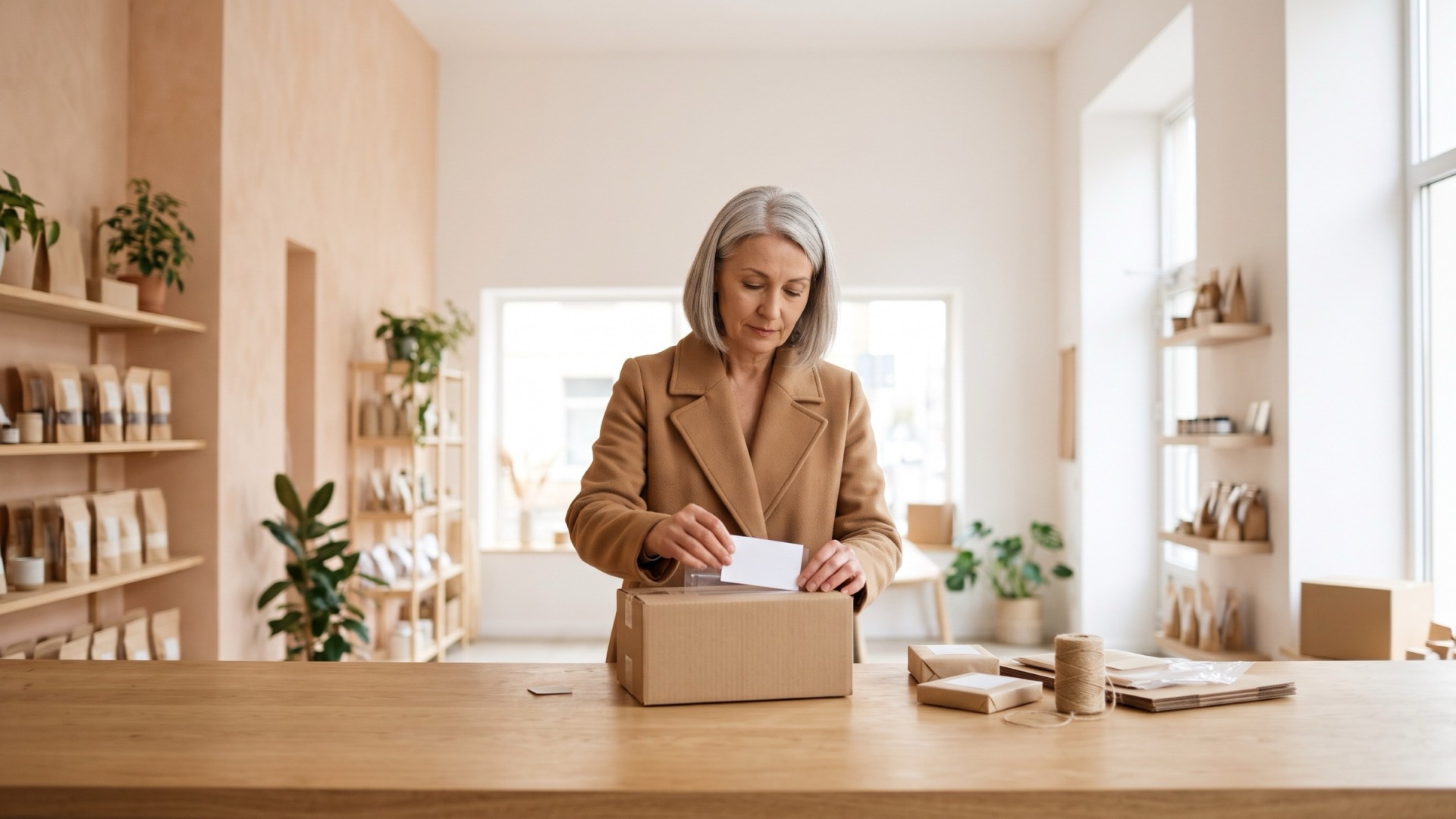
If you print on plain paper, a clear label pouch keeps the label flat and readable. UPS lists see-through pouches among its shipping supplies and suggests starting with a box or envelope, a label and a clear pouch. Ordering supplies on ups.com requires a UPS.com username.
Getting the package to UPS: drop-off
Once the label is on, you can drop the package off:
- The UPS Store. Full service locations that accept packages and can also print labels and pack items.
- UPS Access Point locations. Participating local businesses and The UPS Store locations where you can drop off eligible prepaid packages.
- Other UPS locations. UPS says to bring your identification when you drop off.
If you created the label on ups.com but cannot print it, UPS says Access Point locations with Mobile Barcode service can print a label from a barcode. To buy a label at a location, UPS points to The UPS Store, Staples, Authorized Shipping Outlets and Authorized Service Providers. Hours and cutoff times vary by location. Our guide to pickup or drop-off covers how to choose.
Getting the package to UPS: pickup
UPS lists these pickup options on ups.com:
- One-time pickup. A driver comes to you for an additional fee. Schedule it on ups.com.
- Hand it to a UPS driver who is already at your address.
- Recurring pickups for accounts: Smart Pickup (you confirm on days you have packages), Daily Pickup, Day-Specific Pickup and Saturday Pickup. UPS says daily pickups typically happen after 2 p.m. and that pickup setting changes can take up to 3 business days to apply.
Pickup prices are in the UPS Rate and Service Guide and change over time.
Voiding an unused UPS label
If you created a label and will not ship the package, void it so you are not billed. On ups.com, UPS says to:
- Log in and open View Shipping History.
- Select the vertical ellipsis next to the shipment to open the Action menu.
- Choose Void. A red dot appears in the Voided column when it is done.
UPS says that if more than 90 days have passed since you created the label, you must contact UPS to request the void, and a void will not be processed after 180 days. Do not reuse a voided label on another box.
Common mistakes that cost money later
UPS can correct charges after delivery when the shipment details were wrong. The most common causes it lists:
- Wrong address type. UPS defines residential delivery as delivery to a home or a home based business in a residential area. If you mark a home as commercial, a residential surcharge can be added afterward. Select Residential Address when you save the address.
- Wrong weight. Use a scale and round any fraction of a pound up to the next pound.
- Missing or wrong dimensions. If the box is large for its weight, dimensional weight applies. See our dimensional weight guide for the math.
- Oversized boxes. UPS may add an Additional Handling charge when the longest side is over 48 inches, the second longest side is over 30 inches, or a package weighs over 50 lb. A box over 130 inches in length plus girth, or over 96 inches long, counts as a Large Package.
- Over the limits. UPS packages can weigh up to 150 lb, be up to 108 inches long, and up to 165 inches in length plus girth.
Creating a UPS label in LogiRates
LogiRates is a website for sending parcels within the United States with USPS, UPS and FedEx. You enter your parcel once, see UPS rates next to USPS and FedEx, pay, and print the label. The rate calculator works without an account, and your first parcel can be sent as a guest, paying by card. Both the sender and the recipient need a US address.
The final price is shown before you pay. Additional services, such as signature, are shown with their own price. After printing, you can drop the parcel off at a carrier location, or book a courier pickup when the service offers one. If you do not use a label, you can cancel it and get your money back.
For many parcels at once, you can upload a CSV file with up to 100 parcels in one order. Each row is priced on its own across USPS, UPS and FedEx, and errors are fixed before you pay.